How to Make an AI Rap Video: Photos, Topic and Final Review
A complete first-video workflow covering photo selection, stages, credit estimates, render history and sharing.
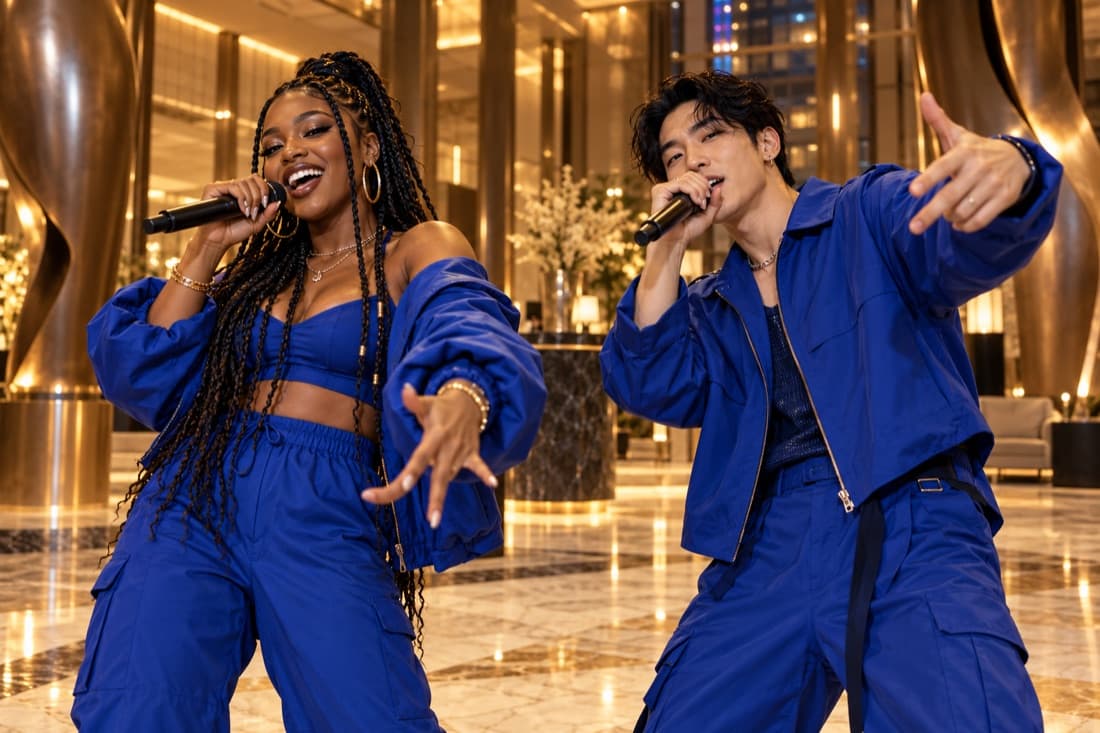
An AI rap video combines reference photos with a generated performance scene and audio. To make your first Rapduo video, choose the participants, upload clear authorised photos, select a stage and enter a short topic. Review the settings and credit estimate, then follow the render in your library.
The aim of your first attempt is a clear, personal idea. Keep the scene simple and give the model one understandable story. You can improve a specific detail after reviewing the result.
Step 1: Choose the people and photos
Decide who will appear before selecting a theme. Ask both people for permission, including permission to publish if you plan to post the finished clip. A surprise can still be thoughtful without using someone’s likeness unexpectedly.
Select two separate portraits or one image showing both people. Faces should be large enough to read clearly, with eyes and mouth visible. Avoid heavy effects, distant group pictures and harsh shadows that hide important features. Keep the original files so you can choose a better reference if needed.
Step 2: Pick a stage
The stage gives the performance its atmosphere. A studio booth can feel focused; a lobby can feel celebratory; a street setting can support an energetic exchange. Choose the setting that helps the topic make sense.
Do not make every detail compete for attention. A simple scene gives the people and their performance room to matter. If your joke is about two friends arriving late, you do not need a complicated description of every object around them.
Step 3: Review quality, length and frame
Open the video settings and inspect the choices available for the model. Different models can offer different lengths and resolutions. Read the displayed credit estimate after changing a setting, since a more demanding render can cost more.
Choose the frame for the destination. A vertical frame suits a phone-focused composition; a square frame can work for a compact post; a landscape frame gives the scene more room horizontally. The frame should keep both people visible rather than forcing them into a crop later.
For your first test, prioritise a complete and understandable scene. A higher resolution does not fix a vague topic or poor reference image. Improve those inputs before spending more on technical settings.
Step 4: Write a compact topic
Give the clip three pieces of information: the occasion, a detail and the tone. For example, “Two friends celebrate finishing their exams and their legendary snack breaks, cheerful and playful.” The example is specific enough to guide the scene without demanding a long script.
Keep private information out of the brief. Names can be useful if the people want them included, but home addresses, medical details and private disputes do not belong in a shareable performance. Leave room for interpretation and avoid requesting a named artist’s voice.
Step 5: Create the performance
Sign in with Google, confirm you have the necessary photo permissions and check your available credits. Start the render once the estimate and settings match your intention. Avoid submitting the same request repeatedly while the first task is processing.
Generation happens as a task, so it may take time. Use the library to see its state and return to the result. If a task fails, check the account record and any message shown before trying a new request.
Step 6: Watch, then download
Watch the whole video rather than judging the first frame. Inspect both people’s appearance, the movement and the words you hear. Make sure the result still communicates your topic and does not introduce an unwanted implication.
Download the version you want to keep. If it is nearly right, choose one revision: a clearer photo, a different setting or a more focused topic. Keeping most inputs the same helps you evaluate the effect of that change.
How much does it cost?
The default video lasts 15 seconds at 768P and uses 15 customer credits. At 768P, one credit covers one second. The three one-time packs cost $4.90 for 15 credits, $9.90 for 45 credits and $29.90 for 225 credits: enough for 1, 3 or 15 default videos. A 15-second 2K video uses 20 credits. Pack credits do not expire, and purchasing a pack does not start a subscription.
The studio displays a quote before submission. Use that quote for your selected resolution and length, and check the pricing page for the current purchases. A higher-resolution video uses more of the same credit balance, so the example video counts are specifically for 15 seconds at 768P.
Keep a small revision allowance in your project budget. AI interpretation can vary, so a first draft should be treated as a creative attempt, not a guaranteed final cut. If your deadline is fixed, allow time to inspect and correct the output.
Troubleshooting
- A face looks unclear: choose a sharper portrait with better lighting and fewer obstructions.
- The topic feels generic: add one concrete shared detail instead of several broad adjectives.
- The joke sounds unfriendly: rewrite the subject as a shared situation, not an attack on one person.
- The framing is cramped: choose references and a frame that give both people visible space.
- A task did not finish: inspect its status and credit record; contact support with the task information if needed.
Questions
Can I start with one photo?
Yes, if it clearly shows both participants. Otherwise use a separate portrait for each person.
Do I need to record a voice?
No. The studio generates the performance audio from the brief. It does not require a microphone recording.
Can I upload my own finished song?
The Rapduo workflow uses photos and a topic. It is not a timeline editor for an uploaded soundtrack.
Can I close the page while it renders?
Use the task library to return to the result. Make sure the task was actually submitted before leaving the page.
What should I include in a support ticket?
Include the task identifier if available, when you submitted it and the issue you see. Do not send passwords, payment card details or API credentials.
Continue with the Hotel Lobby studio, a birthday rap, or an original duo name.
Written by Rapduo Editorial. This guide describes the Rapduo photo performance workflow. Examples and review exercises are original editorial material.